
Trauma Lab Browser: How to Play, Controls, and Tips
Play Trauma lab browser on itch.io with a guide to sandbox controls, v1.19 Story mode, mobile performance, and the differences between platform options.
Jump to
Can You Play Trauma Lab in Your Browser?
Trauma lab browser play puts a physics sandbox, anatomy tools, and a playable Story mode within reach through its HTML5 version. Knowing the controls matters because sandbox experiments and Story encounters use different inputs. Start your Trauma lab browser session from the official Trauma Lab game page, then check which mode you are entering before reaching for keyboard shortcuts.
Trauma Lab is an in-development simulation from Abynotic Studios. Its sandbox combines a movable ragdoll subject, internal anatomy, medical tools, props, weapons, and supernatural powers. You can inspect injuries, change viewing angles, manipulate objects, and experiment with the interaction between damage and treatment.
The browser version is one of three platform options: HTML5, Windows, and Android. Keep those options separate when choosing how to play.
| Platform option | Format | Where to start |
|---|---|---|
| HTML5 | Browser game | Open the game on its official itch.io page |
| Windows | Downloadable version | Use the Windows download on the official page |
| Android | Downloadable APK | Use the Android download on the official page |
Playing on a phone through a browser and installing the Android APK are separate routes. An Android download does not require you to use the browser build, and opening the HTML5 game does not install the APK.
There is also a $5 Supporter option. Its benefits include access to future builds as they become available, a Discord Supporter role, playtest participation, and a Steam key when the game launches on Steam. That future key is a supporter benefit tied to launch; the current platform choices remain HTML5, Windows, and Android.
Learn the Trauma Lab Browser Controls
The sandbox gives you several ways to interact with the same scene. Before experimenting with equipment, learn how to pause, inspect the subject, and navigate the tool categories.
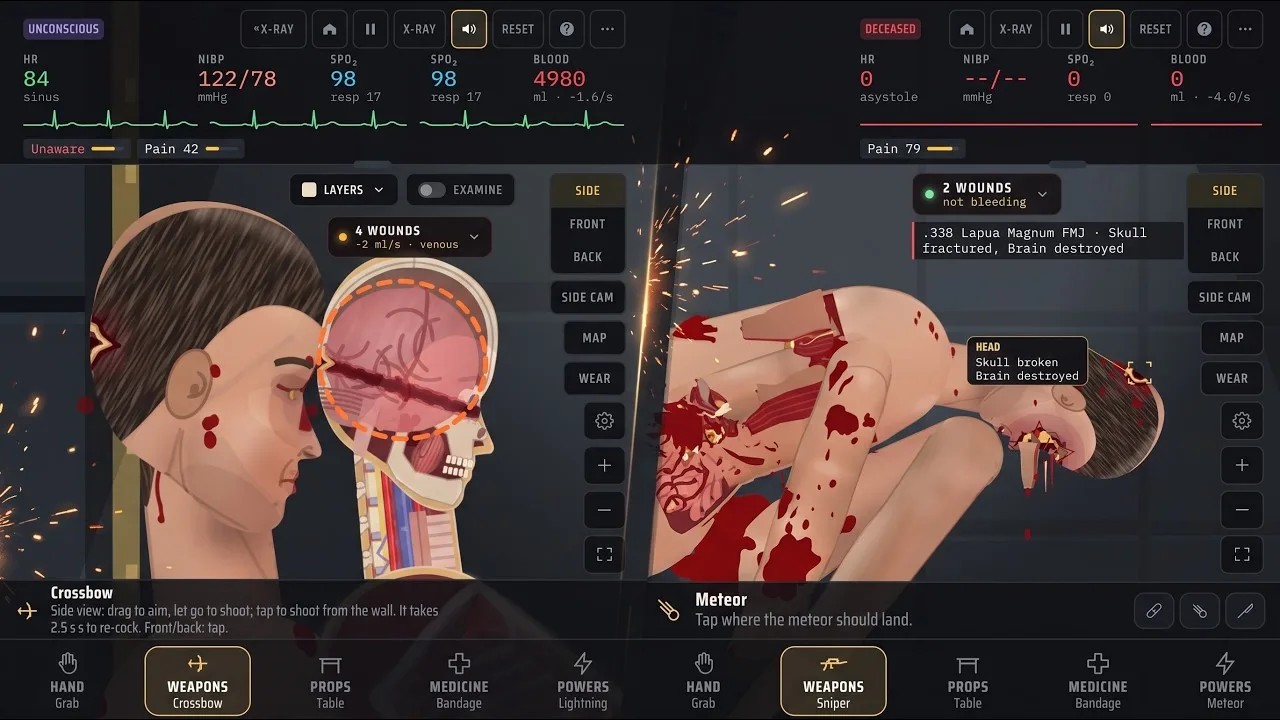
These are the default sandbox bindings. Keys are remappable, and Story mode uses different controls.
| Sandbox action | Default key |
|---|---|
| Hand tools / Weapons / Props | 1 / 2 / 3 |
| Medicine / Powers | 4 / 5 |
| Previous / next tool within a tab | Q / E |
| Switch the selected tool’s mode | F |
| Open the tool menu | Tab |
| Toggle X-ray / Examine with X-ray | X / Z |
| Show bullet paths / organ chart | T / C |
| Change heart monitor size | M |
| Cycle side, front, and back views | V |
| Pause or resume | Space |
| Slow down / speed up | Left Arrow / Right Arrow |
| Zoom in / zoom out / fit to screen | = / − / 0 |
| Open Options | O |
Start with Space, X, Z, and V. Pause to inspect the scene, turn on X-ray, use Examine, and cycle through the available views. That sequence gives you a clearer way to explore anatomy before adding more moving objects.
Use Tab when you want to browse tools directly. Once you know a category, its number key and the Q/E shortcuts let you move through equipment without repeatedly opening the full menu.
The F shortcut changes a tool’s mode where applicable, including actions such as switching between slash and stab or semi-automatic and automatic fire. Check the selected tool before using it.
Camera handling also has its own tool. Select Move to drag the view, then pinch or scroll to zoom. Press 0 to fit the scene back onto the screen after a close inspection.
For a focused survival experiment, H activates the “keep him alive” challenge. Learn the examination and treatment tools before adding that extra objective to your Trauma lab browser session.
Explore the Sandbox Without Losing Track of Your Experiment
The sandbox becomes easier to understand when you change one thing at a time. Place a prop, inspect the subject, try a tool, and check the result before stacking another interaction onto the scene.
Start with Grab. It lets you drag body parts and objects, throw objects with a fling, and tap a body part to examine it. Use Move for camera adjustments so you can separate repositioning the view from manipulating the subject.
Props introduce their own interactions. The Gurney is a wheeled stretcher that you can roll with Grab. The Pool starts empty and accepts water or chemicals. Beakers also begin empty; after filling one, grab it near the bottom to tilt and pour it.
Match the Treatment Tool to the In-Game Problem
Medicine contains tools with distinct jobs. Closing a visible wound, repairing internal bleeding, and replacing a damaged organ are separate actions.
| Tool | In-game function | Interaction |
|---|---|---|
| Bandage | Covers wounds and burns | Tap to dress a wound or drag to wrap |
| Gauze pack | Packs deep wounds, craters, and stumps | Tap the affected wound |
| Suture | Closes a wound and ties off vessels there | Tap the wound; internal bleeding continues |
| Surgery | Repairs internal bleeding and removes bullets in the selected area | Sedate the subject, then tap a body part |
| Bone plate | Repairs supported fractures | Sedate the subject, then tap the fracture |
| Transplant | Replaces damaged organs or reattaches limbs | Tap a body part, stump, or detached limb |
| Burn gel | Treats first- and second-degree burns | Tap or rub over burned skin |
| Graft | Rebuilds missing tissue and covers major wounds | Sedate the subject, then tap the damaged area |
Use X-ray and examination alongside treatment. If you have stitched an external wound but internal bleeding remains, switch to the tool designed for that internal damage.
The distinction between Super serum and Ultra serum also matters. Super serum provides regeneration. Ultra serum can revive the subject and regrow missing limbs. Choose the serum whose function matches the experiment instead of treating the two as interchangeable.
The Inhibitor cancels drugs, serums, poisons, and viruses. Use it when you want to remove those active effects before testing another substance. These are fictional game systems, not medical instructions.
Account for the Current View
Some equipment changes its interaction between side view and front or back view. In side view, the knife is held by its handle and swung or thrust. In front and back views, several melee tools use taps or swipes instead.
Read the selected tool’s hint before repeating an input across views. A missed interaction can come from using the wrong gesture for the camera angle.
For clearer Trauma lab browser experiments, pause between major changes and inspect the result. Adding multiple tools and substances at once makes it harder to connect a visible effect with the action that caused it.
What Story Mode Includes in v1.19
Trauma Lab v1.19 includes a rebuilt, three-room Story mode. It adds a cell, storage area, and security room, along with cover, revised movement, a guard, and a sentry encounter.
| Story area | Objects or characters present | Detail to account for |
|---|---|---|
| Cell | Medicine cabinet, pistol, knife, crowbar | These items are available in the starting cell |
| Storage | Guard and steel crate | The guard has simulated organs, wounds, bleeding, and a soft vest |
| Security | Sentry gun and jammed exit door | The sentry searches with a moving red beam |
The guard in this version does not move or fight back. The sentry is different: its beam sweeps up and down, and it fires after the beam detects you.
Use the steel crate’s cover interaction when working around the sentry. Press Q beside a steel crate to sit with your back against it and become hidden. Aiming over the crate allows blind fire, with substantially reduced accuracy.
That creates an important control distinction: Q means cover in Story mode, while the sandbox uses Q to select the previous tool.
Stay low behind cover to avoid the sentry’s detection beam. You can also shoot the sentry or kick it over. Choose your response around its scanning behavior rather than standing exposed while it searches.
Weapon handling has changed, too. Your character faces the direction you aim, and moving the opposite way makes the character walk backward. The gun rests in a lowered position until aiming or firing, and shooting while lying down is supported.
With the knife equipped, the Story FIRE action performs a forward stab. Keep that separate from the sandbox’s handle-based knife interaction.
For Trauma lab browser players switching between modes, relearn the immediate controls before acting. The same letter or weapon can serve a different interaction once you leave the sandbox.
Reduce Browser Lag and Handle Mobile Problems
If Trauma Lab slows down, lower the gore level in Options. This is the developer’s specific adjustment for lag, making it a practical starting point before changing how you play.
Version 1.17 also revised phone rendering. Body lighting and skin texture preparation were moved away from repeated work during every frame, and floor shadows were simplified. Those changes reduced rendering work on phones.
Keep the performance change in perspective: it addresses rendering efficiency, while lowering gore remains an available adjustment when your session feels sluggish.
Use this short checklist:
- Open Options and lower gore when the simulation lags.
- Check the selected view before interpreting unusual camera behavior.
- Use Fit to screen after zooming if you need to restore a readable framing.
- Distinguish browser play from the Android APK when describing a problem.
Camera flicker can occur while zooming or moving the camera in front or back view. If it happens, note the view and the action that triggered it when reporting the bug. That gives the developer a specific interaction to investigate.
A black screen after choosing Restore game is another mobile issue to watch for. If you encounter it, include that exact button name, your device, and whether you were using the browser version or Android APK in your report.
Do not assume that a rendering optimization resolves every loading or camera problem. Keep the symptom specific: lag, camera flicker, and a black screen after Restore game describe different failures.
For your next Trauma lab browser session, start by checking the controls, use the examination tools before combining effects, and lower gore if performance gets in the way. That keeps the focus on experimenting with the simulation and navigating the current Story encounters.
FAQ
Can I play Trauma lab browser without downloading the Windows version?
Yes. Trauma Lab has an HTML5 browser version on its official itch.io page. Windows and Android are separate downloadable platform options.
Is Story mode playable in Trauma Lab v1.19?
Yes. Version 1.19 includes a rebuilt Story mode spanning a cell, storage, and security. It features a stationary guard, steel-crate cover, and a sentry that detects you with a scanning red beam.
How do I reduce lag on my phone?
Lower the gore level in Options. Version 1.17 also introduced phone rendering optimizations, including changes to body lighting, shadows, and skin texture preparation.
Are the browser sandbox controls the same as Story controls?
No. For example, Q selects the previous tool in the sandbox but activates cover beside a steel crate in Story mode. Sandbox bindings are remappable, so check your settings before relying on the defaults.
Continue with
 Trauma Lab Download: Windows, Android & Browser GuideFind your Trauma lab download for Windows or Android, explore browser play, compare platform options, and get tips for controls, updates, and lag fixes.
More in Platforms
Trauma Lab Android: Downloads, Controls, and Lag Fixes
Explore Trauma Lab Android downloads, controls, sandbox tools, Story mode, and lag fixes. Get ready to play the in-development medical sandbox on mobile.
Trauma Lab Itch.io: Browser, Downloads & V1.19 Guide
Explore Trauma lab itch.io for browser play, Windows and Android downloads, v1.19 controls, Story mode tips, performance fixes, and $5 supporter benefits.
Trauma Lab System Requirements: Platforms & Lag Tips
See Trauma lab system requirements for Windows, Android, and browser play. Explore supported platforms, mobile performance updates, and tips to reduce lag.
Trauma Lab Windows: Download, Controls, and PC Tips
Get started with Trauma Lab Windows: find the official download, learn sandbox controls, explore Story mode, and adjust gore settings for smoother PC play.
Join the community
Official channels for news, updates and player help: