
Trauma Lab Android: Downloads, Controls, and Lag Fixes
Explore Trauma Lab Android downloads, controls, sandbox tools, Story mode, and lag fixes. Get ready to play the in-development medical sandbox on mobile.
Jump to
Is Trauma Lab Available on Android?
Trauma Lab Android puts a graphic anatomy sandbox on your phone, with Android included alongside the browser and Windows versions. Choosing the right download and learning the touch controls matters because this in-development game combines detailed injuries, medical tools, and physics. Start your Trauma Lab Android session at the official game page, then get familiar with camera movement before experimenting with the sandbox.
Trauma Lab is a single-player simulation from Abynotic Studios. Its sandbox brings together a ragdoll subject, anatomical systems, movable objects, medical treatments, weapons, and supernatural powers. Expect graphic injuries and gore throughout that experimentation.
The platform choices are straightforward:
| Platform | Available format |
|---|---|
| Android | Android platform support and an APK download |
| Browser | HTML5 game |
| Windows | Windows download |
Start With the Android Download
Open the official Trauma Lab download page and look for the Android download in the download section. Choose the Android file when setting up the game on your phone.
Keep the browser version and the Android download distinct when checking updates. Trauma Lab also runs as an HTML5 browser game, so opening the playable web version and downloading an APK are separate ways to access it.
The game remains in development, and its interface and features have already received substantial revisions. Pay attention to the version you launch: the v1.19 features discussed below include a rebuilt Story mode, while v1.17 introduced phone performance improvements.
For Trauma Lab Android, begin with a simple goal: learn how to select tools, reposition the camera, and inspect the subject. Those actions provide a foundation for understanding what happens when you start combining systems.
Learn the Touch Controls Before Using Tools
Trauma Lab uses several distinct interaction patterns. A tap, a held press, and a drag can produce different results depending on the selected tool.
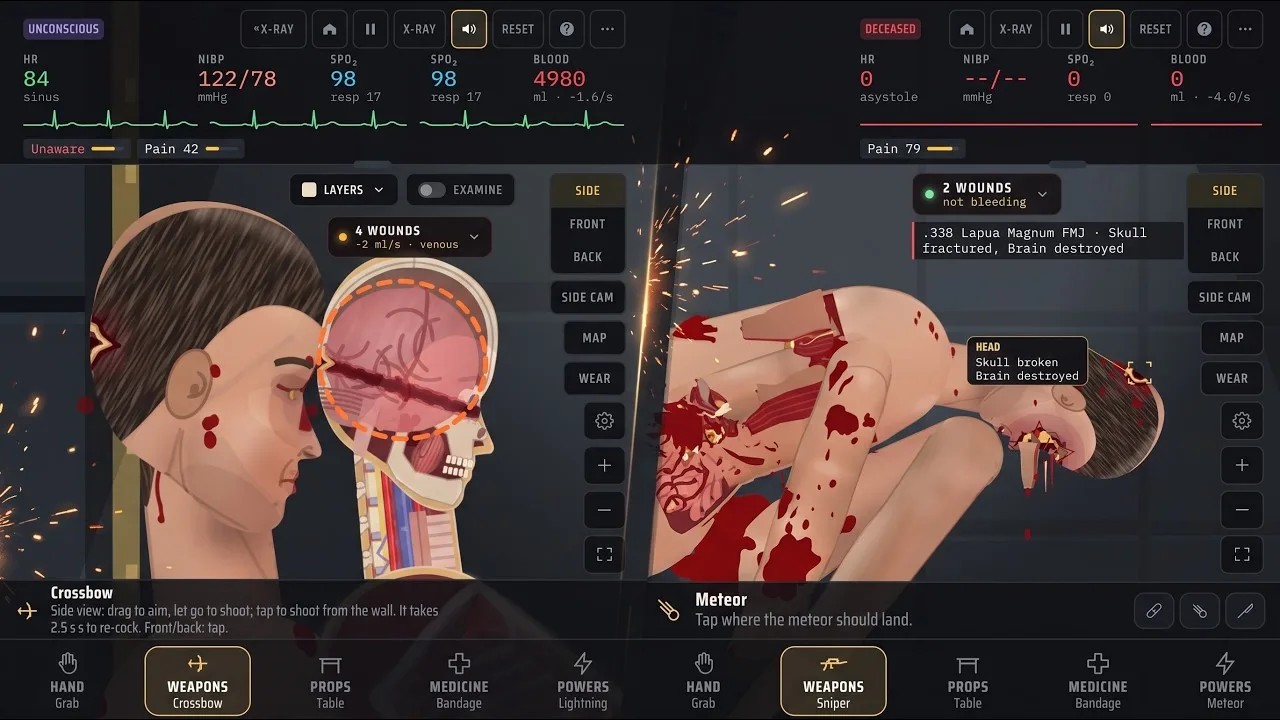
That distinction matters on a touchscreen. With Grab selected, dragging moves a body part or object. With Move selected, dragging pans the camera. Select the intended tool before placing your finger on the scene.
| Tool or interaction | Touch action | Result |
|---|---|---|
| Grab | Drag a body part or object | Moves it; a fling throws it |
| Grab | Tap a body part | Examines that body part |
| Move | Drag | Pans the camera |
| Move | Pinch | Changes camera zoom |
| Remove | Tap an attached item | Removes supported items, including bandages and lodged objects |
| Bandage | Tap a wound or drag along the body | Applies a dressing or wraps the area |
Use Move when you want to change your viewpoint without grabbing the subject. Pinch to adjust zoom, then return to Grab or another tool when the framing feels comfortable.
The sandbox includes Side, Front, and Back views. Some tools behave differently between those views, so read the selected tool’s hint before trying the same gesture from another angle.
For example, the Knife uses handle-based movement in Side view: you take hold of it and swing or thrust. Other melee tools have their own Front and Back interactions. The Machete uses a swipe across the body in those views, while the Axe uses a tap.
Keep Desktop Shortcuts Separate
The default sandbox keyboard controls include X for X-ray, C for the organ chart, and Space for pause. Those are keyboard bindings, not Android touch gestures.
Story controls also differ from sandbox controls. Avoid carrying a keyboard shortcut from one mode into another without checking its purpose.
When learning Trauma Lab Android, focus on the selected tool and its gesture. Changing tools deliberately makes it easier to understand whether you are moving the camera, manipulating an object, or applying an action.
Understand the Sandbox’s Medical and Physics Tools
The sandbox becomes easier to follow once you separate inspection, injury, and treatment. Instead of activating several effects together, change one thing and examine the result.
Start by moving an object with Grab. Switch to Move to adjust the camera. Then explore a medical tool and read what it actually handles. This keeps your attention on the game’s mechanics rather than a crowded scene.
The medical tools have specific jobs. Closing a surface wound, repairing internal damage, and replacing missing tissue are different operations within the simulation.
| Medical tool | In-game function | Detail to remember |
|---|---|---|
| Bandage | Dresses wounds and wraps body areas | Supports both tapping and dragging |
| Suture | Closes a wound and ties off torn vessels there | Internal bleeding can continue |
| Surgery | Repairs internal bleeding and damaged organs in the selected area | The tool instructs you to sedate the subject first |
| Bone plate | Fixes fractures with plates and screws | The tool instructs you to sedate the subject first |
| Transplant | Replaces damaged organs or reattaches limbs | Also includes a bone marrow transplant function |
| Graft | Rebuilds missing tissue and covers major wounds or stumps | The tool instructs you to sedate the subject first |
These are game mechanics, not instructions for treating real injuries.
Match the Tool to the Problem
Do not keep applying Suture when your goal is to address internal bleeding. Its function is local wound closure; Surgery handles internal repairs.
Likewise, use the Bone plate tool for fractures rather than expecting a dressing to restore a broken bone. The simulation separates those systems, which gives each tool a purpose.
Burn treatment has a similar distinction. Burn gel handles first- and second-degree burns, while third-degree burns require a Graft in the game.
For Trauma Lab Android sessions focused on the medical sandbox, inspect the affected area before choosing a treatment. The game’s X-ray and organ chart features help you explore the anatomy behind the visible damage.
Super Serum and Ultra Serum Have Different Roles
The names sound similar, but the tools have different descriptions. Super serum provides experimental regeneration. Ultra serum explicitly includes revival and the regrowth of lost limbs.
Choose Ultra serum when experimenting with those specific effects. Do not assume every regeneration item performs the same job.
The Inhibitor adds another useful distinction: it cancels drugs, serums, poisons, and viruses. Remember that scope before using it during an experiment built around an ongoing serum effect.
Beyond medicine, props add physical interactions. Tables, chairs, and a wheeled gurney can be placed and moved. Try manipulating a single prop before filling the scene, especially while learning touchscreen dragging.
Reduce Lag and Simplify the Screen on Android
If Trauma Lab Android feels sluggish, lower the gore level in Options. That is the developer’s direct troubleshooting recommendation for lag.
Make that change before loading the scene with additional effects. Lowering gore gives you a clear adjustment to evaluate without changing several settings together.
| Setting or feature | Action | Purpose |
|---|---|---|
| Gore level | Lower it in Options | Addresses lag |
| Hit label | Turn it off under Options → Interface → On screen | Removes the label attached to the newest wound |
| Move tool | Pan and pinch to adjust framing | Changes the camera position and zoom |
| Side / Front / Back views | Select the view needed for the interaction | Matches the viewpoint to the tool behavior |
Turning off the hit label is an interface choice. It removes an on-screen element; the gore setting is the specific performance adjustment recommended for lag.
What the Phone Performance Update Changed
Version 1.17 revised several rendering tasks that affect phones. Body lighting became part of the prepared skin appearance instead of being redrawn across the body every frame. Floor shadows switched to a prepared shadow, and the skin texture began being prepared at loading.
That update also removed the thin rim light along the subject’s back. These changes targeted rendering overhead while retaining the redesigned shading.
The same update restored the classic HUD, including the top-bar buttons, view selectors, zoom controls, and full ammunition names. If you are navigating that interface, look for the individual controls rather than expecting everything to sit behind one tool selector.
Keep Troubleshooting Focused
Start with the gore adjustment, then return to a simple scene and check whether interaction feels more responsive. Avoid adding several demanding effects while judging that change.
For Trauma Lab Android, camera control deserves attention too. Use Move to pan and zoom deliberately, then switch back to the tool you need. Keeping the subject clearly framed makes small targets easier to select without repeatedly changing your viewpoint.
Explore Story Mode and the Supporter Option
Trauma Lab extends beyond its open sandbox. Version 1.19 rebuilt Story mode around three rooms: your cell, Storage, and Security.
The cell contains a medicine cabinet, a pistol, a knife, and a crowbar. Storage introduces a guard and a steel crate. Security contains a sentry gun and the jammed exit door.
The guard uses the same anatomical body systems as the player character, including organs, bleeding, and wounds. In v1.19, that guard does not move or fight back yet.
Use Cover Against the Sentry
The sentry sweeps a red beam and fires after the beam detects you. Stay low behind cover, shoot the sentry, or kick it over.
Steel crates provide a cover interaction. Aiming over a crate allows blind fire with reduced accuracy, so consider that tradeoff before exposing your aim.
Version 1.19 also supports turning around, shooting while lying down, and revised movement. With a weapon equipped, your facing follows your aim; moving in the opposite direction becomes backward movement.
Those details give Story mode a different rhythm from sandbox experimentation. Pay attention to positioning and detection instead of treating each room as an unrestricted testing space.
What the $5 Supporter Option Includes
The $5 itch.io Supporter option offers access to future builds as they become available, a Discord Supporter role, playtest access, and a Steam key when the game launches on Steam.
Use the official Trauma Lab support page if you want to support continued development. Keep the Steam key’s timing in mind: that benefit is tied to the Steam launch.
For now, approach Trauma Lab Android as an evolving simulation. Learn the touch interactions, distinguish the medical tools, and lower gore when performance interrupts play.
FAQ
Is Trauma Lab Android available?
Yes. Trauma Lab supports Android, and an APK download is available through its official itch.io page. The game also supports Windows and HTML5 browser play.
How do you reduce lag on Android?
Lower the gore level in the Options menu. Version 1.17 also introduced phone-focused rendering improvements involving body lighting, floor shadows, and skin textures.
How do you zoom on a touchscreen?
Select Move and use a pinch gesture to zoom. Drag with that tool selected to pan the camera. Switch back to Grab when you want to move body parts or objects.
Does Trauma Lab have Story mode?
Yes. Version 1.19 includes a rebuilt Story mode with three rooms: the cell, Storage, and Security. It includes a guard, steel-crate cover, a sentry gun, and a jammed exit door.
Continue with
 Trauma Lab Browser: How to Play, Controls, and TipsPlay Trauma lab browser on itch.io with a guide to sandbox controls, v1.19 Story mode, mobile performance, and the differences between platform options.
More in Platforms
Trauma Lab Download: Windows, Android & Browser Guide
Find your Trauma lab download for Windows or Android, explore browser play, compare platform options, and get tips for controls, updates, and lag fixes.
Trauma Lab Itch.io: Browser, Downloads & V1.19 Guide
Explore Trauma lab itch.io for browser play, Windows and Android downloads, v1.19 controls, Story mode tips, performance fixes, and $5 supporter benefits.
Trauma Lab System Requirements: Platforms & Lag Tips
See Trauma lab system requirements for Windows, Android, and browser play. Explore supported platforms, mobile performance updates, and tips to reduce lag.
Trauma Lab Windows: Download, Controls, and PC Tips
Get started with Trauma Lab Windows: find the official download, learn sandbox controls, explore Story mode, and adjust gore settings for smoother PC play.
Continue exploring
Trauma Lab Black Screen: Mobile Troubleshooting Guide
Trauma lab black screen after Restore game? Check the mobile symptom, camera controls, and v1.17 performance changes to narrow down your next steps safely.
Trauma Lab Bullet Paths: Controls and Injury Guide
Learn Trauma lab bullet paths controls in v1.19, use X-ray and organ tools, compare weapon stats, and handle lodged bullets and internal bleeding in-game.
Join the community
Official channels for news, updates and player help: