
Trauma Lab Gore Settings: Reduce Lag and Tune Visuals
Adjust Trauma lab gore settings to reduce lag, find the Options menu, and clean up your HUD. Learn sandbox controls and what changed for phones in v1.17.
Jump to
How to Change Trauma lab Gore Settings
Trauma lab gore settings are worth checking as soon as the simulation starts to lag. Lowering the gore level in Options is the recommended response to slowdown, so this adjustment has a practical purpose beyond changing the presentation. Start with Trauma lab gore settings when you want to balance graphic detail with smoother play.
The quickest route on a keyboard is O, the default sandbox shortcut for Options in v1.19. From there, find the gore-level control and lower it if the game is struggling.
Follow this sequence:
- Open Options through the game interface, or press O with the default sandbox controls.
- Find the gore-level setting.
- Reduce the current level.
- Return to the simulation and compare responsiveness during similar activity.
Keep the comparison simple. Use the same view and a similar scene so you can judge the adjustment without also changing what the game is displaying.
If you're adjusting the game on a phone, use the on-screen Options control. The keyboard shortcuts discussed here belong to the default sandbox layout; Story mode has different controls, and bindings are remappable.
Change one setting at a time. Lower gore, check the result, and then decide whether to adjust anything else. Changing the interface and camera at the same time makes it harder to tell which adjustment helped.
Recommended Gore and Display Values
For a lagging game, the recommendation is straightforward: lower the gore level from its current setting. There is no need to choose a more graphic presentation while troubleshooting slowdown.
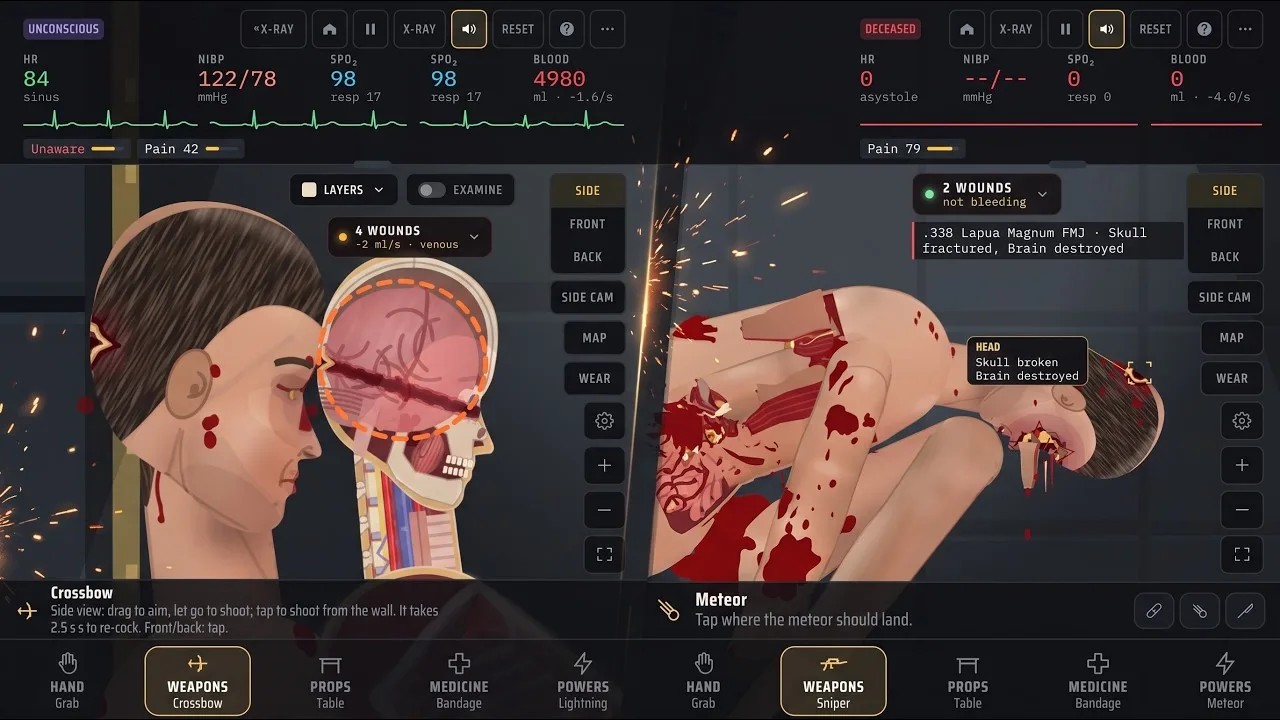
Trauma lab gore settings and interface settings serve different purposes. Gore level is the control to adjust for the lag issue. The Hit label option lets you remove an annotation attached to the newest wound.
| Setting | Recommended value | Why it helps |
|---|---|---|
| Gore level | Lower than the current level when experiencing lag | This is the recommended adjustment for game slowdown |
| Hit label | Off if you want fewer on-screen annotations | Removes the label identifying the newest wound and what it hit |
The Hit label recommendation is about readability. Use it when you want a cleaner view of the subject; use the gore-level adjustment when addressing performance.
Choose presentation around responsiveness
If your current setup runs smoothly, adjust the gore level around the presentation you prefer. If responsiveness becomes a problem, lower it before continuing with a complicated sandbox scene.
Avoid choosing a setting solely because your device sounds powerful on paper. Compare how the game actually behaves during the activity you want to play. A simple scene and an active experiment give you different situations to evaluate.
Use a short comparison routine:
- Keep the camera in the same view.
- Repeat a similar interaction.
- Watch how quickly the game responds to your input.
- Keep the lower setting if it makes play more comfortable.
This comparison is more useful than changing settings while also switching views, zooming, and introducing additional activity. Give yourself a clear before-and-after impression.
Keep the interface decision separate
A wound label can be useful when you want immediate information about a hit. It can also draw your attention away from the body itself.
Choose whether you want that annotation based on how you use the sandbox. Turning it off removes the label; it should not replace lowering the gore level in your performance troubleshooting.
Phone Performance and the v1.17 Changes
Trauma lab supports HTML5, Windows, and Android. For phone players, the v1.17 update included substantial rendering changes aimed at restoring the speed of v1.14 after the visual redesign.
Those changes matter when evaluating Trauma lab gore settings because phone performance also depends on how the game draws the body, lighting, and shadows.
| Rendering component | Change introduced in v1.17 |
|---|---|
| Body lighting | Prepared as part of the skin instead of being redrawn across the body every frame |
| Floor shadows | Uses a prepared shadow |
| Skin texture | Prepared once during loading |
| Cool rim light along the back | Removed |
The phone optimization targeted roughly halving frame time while keeping the redesigned shading and its sense of depth. That is a version-specific performance improvement, rather than a promised frame rate for every device.
Check the version before comparing performance
Check which version you're playing before comparing your experience with an older build. Version 1.17 changed the rendering workload, while v1.19 includes the later Story mode rebuild.
If you need to check available downloads, visit the Trauma lab game page. The game remains in development, so the build you're running matters when discussing both controls and performance.
On a phone, start with the same practical adjustment used elsewhere: lower the gore level through Options. Then return to the scene and check whether interaction feels more responsive.
Compare the activity you actually play
Evaluate the game during your usual sandbox activity. A quick look at an idle subject tells you less about your experience than interacting with the scene.
Keep the comparison focused, though. Avoid testing a lower gore setting while simultaneously moving to another view or changing the camera position.
The aim is to find a comfortable setting for your session. Keep any improvement you can clearly recognize, and avoid assigning an FPS increase unless you have actually measured it on your device.
Clean Up the HUD Without Losing Useful Information
Gore controls are only one part of the presentation. Trauma lab also gives you ways to inspect the subject, change the camera view, and decide how much information appears over the scene.
For the newest-wound annotation, use:
Options → Interface → On screen → Hit label
The option arrived in v1.18. It is on by default, and the game remembers your choice. Turn it off when you want the wound label removed from the scene.
That remembered preference applies to Hit label. Keep it separate from any assumptions about other settings.
Use inspection tools deliberately
You can inspect anatomy and injury information through the sandbox controls instead of relying entirely on a persistent wound annotation.
| Sandbox function | Default key | What it opens or changes |
|---|---|---|
| Options | O | Opens Options |
| X-ray | X | Controls the X-ray view |
| Examine | Z | Examines with X-ray |
| Bullet paths | T | Controls the bullet-path display |
| Organ chart | C | Opens the organ chart |
| Next view | V | Cycles side, front, and back views |
These are the v1.19 default sandbox bindings. Use your assigned keys if you've remapped them, and keep Story mode's separate controls in mind.
For a focused inspection, open the display relevant to your question. Use X-ray and Examine when looking into the subject, or the organ chart when you want organ information.
Set the camera before making comparisons
The sandbox includes side, front, and back views. Press V to cycle through them with the default bindings.
For camera positioning, the Move tool supports dragging to pan and pinching or scrolling to zoom. Keyboard users also have Equal for zooming in, Minus for zooming out, and 0 for fitting the subject to the screen.
Frame the subject before comparing Trauma lab gore settings. Keeping the same view and zoom makes the visual difference easier to judge.
The v1.17 interface also restored the familiar top-bar arrangement, including view buttons, camera controls, Map, Wear, zoom, and full ammunition names. Use those controls to establish the view you want before returning to Options.
Troubleshoot Lag, Camera Flicker, and Black Screens Separately
Lowering Trauma lab gore settings addresses the game's lag recommendation. Other symptoms need to be identified separately so you don't spend the session adjusting a setting that targets a different problem.
Camera flicker during front or back view and a black screen after Restore game on a phone are distinct symptoms from general slowdown.
| Symptom | Relevant context | Immediate next step |
|---|---|---|
| General lag | Gore level has a direct troubleshooting recommendation | Lower gore in Options and compare responsiveness |
| Flicker while zooming or moving the camera | The symptom involves front or back view camera interaction | Compare with side view and note the triggering movement |
| Black screen after Restore game on a phone | The symptom follows a specific restore action | Record the platform, version, and action that preceded it |
The last two steps help narrow down the problem. They are diagnostic actions, rather than promised fixes.
For general slowdown
Begin with the gore-level adjustment. Keep the same scene and view, lower the setting, and compare how the simulation responds.
If the game becomes more comfortable to control, keep that setting for the session. You can revisit presentation preferences later without interrupting the experiment you're trying to run.
Use the phone rendering changes as version context. They explain why an older build and a later build can behave differently, but your own session still determines which setting feels usable.
For camera flicker
If flickering happens while zooming or moving the camera in front or back view, compare the behavior in side view.
Note whether the trigger is zooming, panning, or switching views. Keep those actions separate during the comparison so you can describe the symptom precisely.
Avoid repeatedly changing the gore level while checking a camera-specific trigger. Finish one comparison before starting another.
For a restore-related black screen
If the screen goes black after selecting Restore game, record that exact sequence along with your phone platform and game version.
That description is more useful than simply calling the problem “lag.” A game that slows during simulation and a screen that goes black after a restore action give you different troubleshooting starting points.
Keep your settings routine simple: identify the symptom, apply the relevant adjustment, and compare the result under similar conditions.
FAQ
How do I open Trauma lab gore settings?
Open Options and find the gore-level control. In v1.19's default sandbox keyboard layout, press O to open Options. On a phone, use the on-screen control.
Does lowering the gore level help with lag?
Lowering the gore level is the recommended response to lag. Reduce it from the current setting, return to a similar scene, and compare responsiveness before changing anything else.
How do I turn off the wound label?
Go to Options → Interface → On screen → Hit label and turn it off. Introduced in v1.18, the option is enabled by default and remembers your choice.
What changed to improve phone performance?
Version 1.17 changed body lighting, floor shadows, and skin-texture preparation, and removed the cool rim light along the subject's back. These changes targeted roughly halving phone frame time and restoring performance toward v1.14.
Continue with
 Trauma Lab Keep Him Alive Challenge: Survival GuideTrauma lab keep him alive challenge guide for v1.19: learn key controls, manage bleeding, use medical tools, and avoid treatment mistakes in your next run.
More in Features
Trauma Lab Black Screen: Mobile Troubleshooting Guide
Trauma lab black screen after Restore game? Check the mobile symptom, camera controls, and v1.17 performance changes to narrow down your next steps safely.
Trauma Lab Bullet Paths: Controls and Injury Guide
Learn Trauma lab bullet paths controls in v1.19, use X-ray and organ tools, compare weapon stats, and handle lodged bullets and internal bleeding in-game.
Trauma Lab Camera Flicker: Controls and Steps to Try
Trauma lab camera flicker can interrupt zooming and movement. Learn the sandbox camera controls, view-switching tips, and options for smoother gameplay.
Trauma Lab Extinguisher: How to Put Out Fires Fast
Learn how to use the Trauma Lab extinguisher, find its sandbox controls, put out flames, and treat burns with Burn gel, bandages, and Graft in the game.
Join the community
Official channels for news, updates and player help: