
Trauma Lab Bug Report: Fixes and Reporting Checklist
Write a useful Trauma lab bug report with steps for camera flicker, mobile black screens, lag, and serum issues. Check version details before you submit.
Jump to
Where to Submit a Trauma Lab Bug Report
A useful Trauma lab bug report turns a flickering camera or a black screen into a problem the developer can reproduce. Use the comments on the Trauma lab itch.io page to post your Trauma lab bug report with the platform, game version, and actions that triggered it. Those details help distinguish a broken interaction from a control difference or an intended simulation effect.
Trauma lab is in development, with HTML5, Windows, and Android platforms listed. Start every report by identifying how you launched the game. “Playing on my phone” leaves out an important distinction: using a mobile browser and running the Android download are different setups.
Keep the opening specific. “Camera flickers when zooming in front view” gives the developer a starting point immediately. “Game broken” leaves them guessing before they can investigate.
| Detail | What to include |
|---|---|
| Game version | The version displayed in the build you used |
| Platform | Browser, Windows download, or Android download |
| Device information | Your phone model or PC setup; browser name when applicable |
| Game mode | Sandbox or Story |
| Trigger | The action immediately before the problem |
| Result | What appeared onscreen and whether controls still responded |
| Repeatability | Whether the same sequence caused the problem again |
Describe the problem before suggesting its cause. A camera that stops responding is something you can document; an explanation involving the rendering engine requires more evidence.
Keep feature requests separate, too. Asking for additional substances or anatomy options is useful feedback, but it needs a different description from an existing button failing to work.
Camera Flicker and Mobile Black Screens: Capture the Trigger
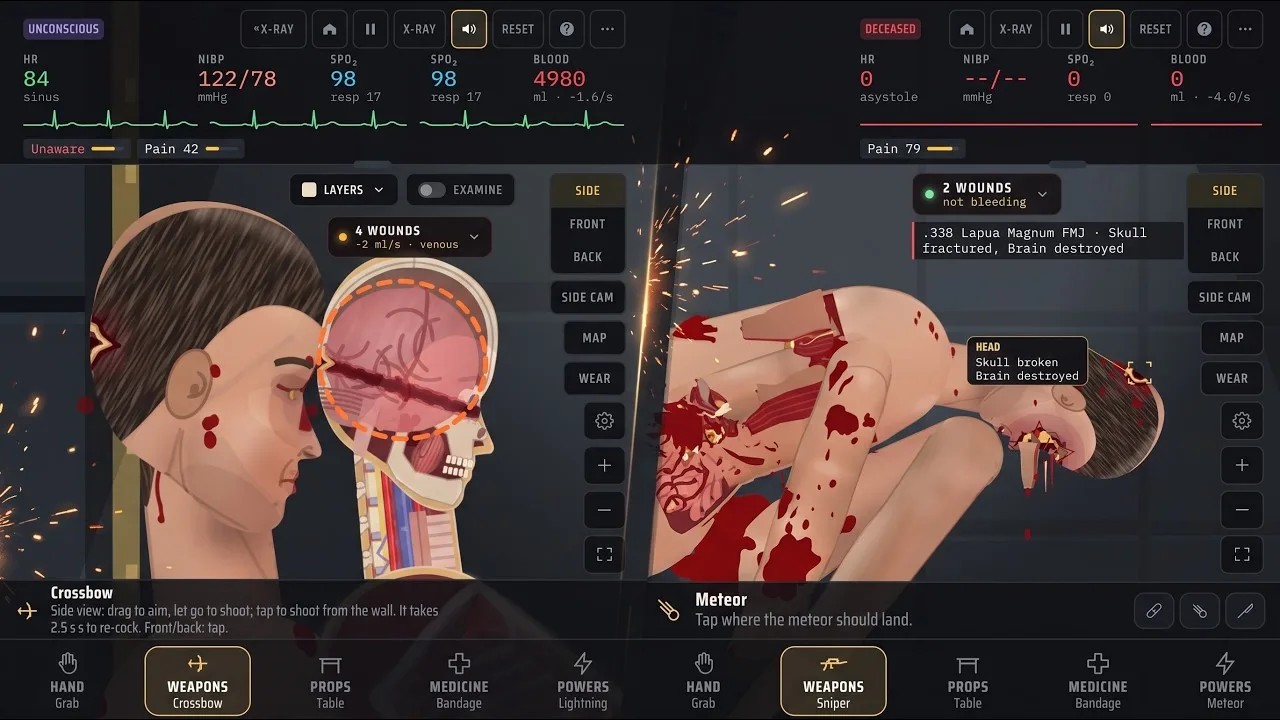
Camera flicker during zooming or camera movement in front and back views is a specific symptom to include in a report. A black screen after selecting Restore game on a phone is another. Describe each separately, even if both happen during the same session.
Describe the view and camera action
For flicker, name the active view before explaining your input. Trauma lab includes side, front, and back views, and the v1.19 sandbox has several camera controls.
| Sandbox control | Default input in v1.19 | Detail to record |
|---|---|---|
| Next view | V | Which view was active when the problem began |
| Zoom in | Equal key | Whether zooming triggered the flicker |
| Zoom out | Minus key | Whether the symptom also occurred while zooming out |
| Fit to screen | 0 | Whether the camera responded afterward |
| Move tool | Drag to pan; pinch or scroll to zoom | The gesture or mouse action used |
These are default sandbox bindings, and keys are remappable. Story controls differ. Include custom bindings in your report instead of assuming everyone uses the same inputs.
Write down whether you used the Move tool, keyboard zoom, mouse wheel, or a touch gesture. “Zooming breaks the camera” becomes much easier to investigate when it identifies the actual input.
If controls still respond, try switching views or using Fit to screen, then record the result. Treat that as a troubleshooting check rather than a guaranteed fix. Stop repeating the sequence once you have a clear example.
Describe what happened around Restore game
For a mobile black screen, preserve the order of events:
- Identify whether you were in a browser or the Android download.
- Name the screen where you selected Restore game.
- Describe what disappeared and what remained visible.
- Note whether audio, buttons, or touch input continued responding.
- State whether it happened again when you repeated the same action.
Capture the screen before restarting if possible. Avoid clearing browser data or reinstalling as your opening troubleshooting step; first preserve the details of the failed session.
Your Trauma lab bug report should make the transition clear: what worked before selecting Restore game, what appeared afterward, and which inputs still did anything.
Lag Fixes and Version Changes to Check
For lag, lower the gore level in the options menu. This is the game's explicit troubleshooting advice, and it gives you a useful setting to compare when documenting performance problems.
Change that setting by itself. Then compare the same kind of scene rather than switching settings, changing views, and starting a completely different interaction together. Keeping the comparison narrow makes your result easier to interpret.
Describe performance in visible terms. Note whether movement becomes choppy, inputs respond late, or the game pauses during an action. Avoid reporting an exact frame rate unless you actually measured it.
Version information matters because recent updates changed both phone performance and Story movement.
| Version | Relevant change | What to check before reporting |
|---|---|---|
| v1.17 | Body lighting and skin texture preparation were moved out of repeated frame rendering; floor shadows were simplified | Record the build used for a phone performance complaint |
| v1.18 | Added the remembered Hit label toggle under Options → Interface → On screen | Check this setting if the newest-wound label is missing |
| v1.19 | Changed Story movement and addressed repeated jumping and jumping with a drawn gun | Include the mode, version, and exact movement sequence |
The v1.17 performance changes roughly halved per-frame processing time on phones. That improvement does not provide a universal frame-rate target for every device or scene. Describe what happens on your device and include the gore setting used.
The Hit label option also deserves attention. In v1.18, the label marking the newest wound is enabled by default, but your choice is remembered. Check the toggle before treating an absent label as a display failure.
For a Trauma lab bug report about Story jumping, specify whether the weapon was drawn and whether the problem followed repeated jumps. Version 1.19 addressed both repeated-jump glitches and jumping with the gun drawn launching the character into the ceiling.
Keep download warnings separate from performance reports. If Windows blocks the launch, include the exact warning and explain whether the game ever opened. That describes a different problem from lag after entering a scene.
Check Tool Effects Before Reporting Broken Mechanics
Some confusing results come from expecting one tool to perform another tool's job. Check the exact item name before reporting that healing, revival, or bleeding control has failed.
Super serum and Ultra serum are especially easy to mix up. In v1.19, Super serum is described as experimental regeneration. Ultra serum explicitly brings back the dead and regrows lost limbs.
A report that says “serum doesn't work” misses that distinction. Name the selected serum, describe the subject's condition beforehand, and explain the result you expected.
| Tool | v1.19 behavior | Detail to include in a report |
|---|---|---|
| Super serum | Experimental body regeneration | Exact injuries and visible changes after use |
| Ultra serum | Revival and regrowth of lost limbs | Whether the issue involved revival, regrowth, or both |
| Inhibitor | Instantly cancels drugs, serums, poisons, and viruses | Whether it was used during the sequence |
| Suture | Closes wounds and ties off torn vessels at the wound; deep internal bleeding continues | Whether the remaining bleeding was internal |
| Defib | Restarts ventricular fibrillation if the heart can still pump | The subject's condition before the shock |
The Inhibitor matters when documenting a serum problem because it cancels serum effects. List it if you used it, along with other tools involved in the sequence.
Likewise, continued internal bleeding after using Suture fits the tool's stated limits. Surgery is the tool described for repairing internal bleeding, while Suture closes the wound itself.
Defib also has a specific role. Its description targets ventricular fibrillation when the heart can still pump. Describe the subject's condition rather than assuming every unsuccessful shock is the same failure.
Story behavior needs the same attention to version-specific expectations. In v1.19, the first guard does not move or fight back yet. That stationary behavior alone is not a useful bug description.
When writing a Trauma lab bug report about an interaction, focus on a concrete mismatch between the selected tool's stated function and what happened. Keep the surrounding sequence intact so another person can try it.
Build a Reproducible Report Before Posting
A clear sequence is more useful than a long account of everything you tried. Work backward from the failure and identify the actions needed to reach it.
For example, use a subject line such as “Front-view camera flickers while zooming — [version], [platform]”. Fill in the brackets with your actual setup. The title identifies the affected system, trigger, and environment without guessing at a cause.
Use this structure for the body:
- Version and platform: Build number, launch method, and device.
- Mode and settings: Sandbox or Story, active view, gore level, and relevant custom controls.
- Steps: The actions taken in order.
- Expected result: What the selected control or tool should do.
- Actual result: What appeared or stopped working.
- Repeatability: Whether the sequence produced the same outcome again.
- Troubleshooting: Changes you tried and what happened after each.
- Attachment: A screenshot or recording, if you captured one.
Number the reproduction steps and give each step a single action. For a camera issue, separate switching views from zooming. For a serum issue, separate selecting the item from applying it.
Include unsuccessful troubleshooting when it adds information. If lowering gore changed nothing, say so. If Fit to screen responded but camera movement still flickered, preserve both details. Neither result needs a theory attached.
Keep screenshots focused on the symptom and remove unrelated personal information. A short recording can show input order, but written steps should still explain the sequence.
Before submitting your Trauma lab bug report, read it as someone who has never seen your session. They should be able to identify the setup, follow the actions, and recognize the failure without asking what “it broke again” means.
FAQ
Where should I submit a Trauma lab bug report?
Use the comments on the game's itch.io page. Include your version, platform, game mode, reproduction steps, and the actual result. Keep separate problems in separate reports so each sequence stays clear.
What should I try if Trauma lab is lagging?
Lower the gore level in the options menu, then compare performance during similar gameplay. Include your device and build number if you report the issue, since v1.17 introduced substantial phone performance changes.
Why doesn't Super serum revive the subject or regrow limbs?
In v1.19, Super serum is described as experimental regeneration. Ultra serum is the item explicitly described as reviving the dead and regrowing lost limbs. Check which item you selected before documenting a failed effect.
What details matter for a black screen after Restore game?
Identify your device, game version, and whether you used a mobile browser or the Android download. Describe the screen before selecting Restore game, what appeared afterward, and whether sound or controls continued responding.
Continue with
 Trauma Lab Discord: Supporter Perks and Playtest GuideExplore the Trauma Lab Discord, learn what the $5 Supporter option includes, and get practical tips for playtests, bug reports, updates, and mobile issues.
Continue exploring
Trauma Lab Controls: Keyboard, Mouse, and Touch Guide
Master Trauma lab controls for keyboard, mouse, and touch. Find sandbox shortcuts, camera tools, medical actions, and Story mode cover tips for v1.19.
Trauma Lab Download: Windows, Android & Browser Guide
Find your Trauma lab download for Windows or Android, explore browser play, compare platform options, and get tips for controls, updates, and lag fixes.
Join the community
Official channels for news, updates and player help: