
Trauma Lab Xray Guide: Controls and Anatomy Explained
Learn Trauma lab xray controls, examine injuries, follow bullet paths, and compare anatomy views in v1.19. Use this guide to navigate the sandbox tools.
Jump to
How to Use Trauma lab xray in Sandbox
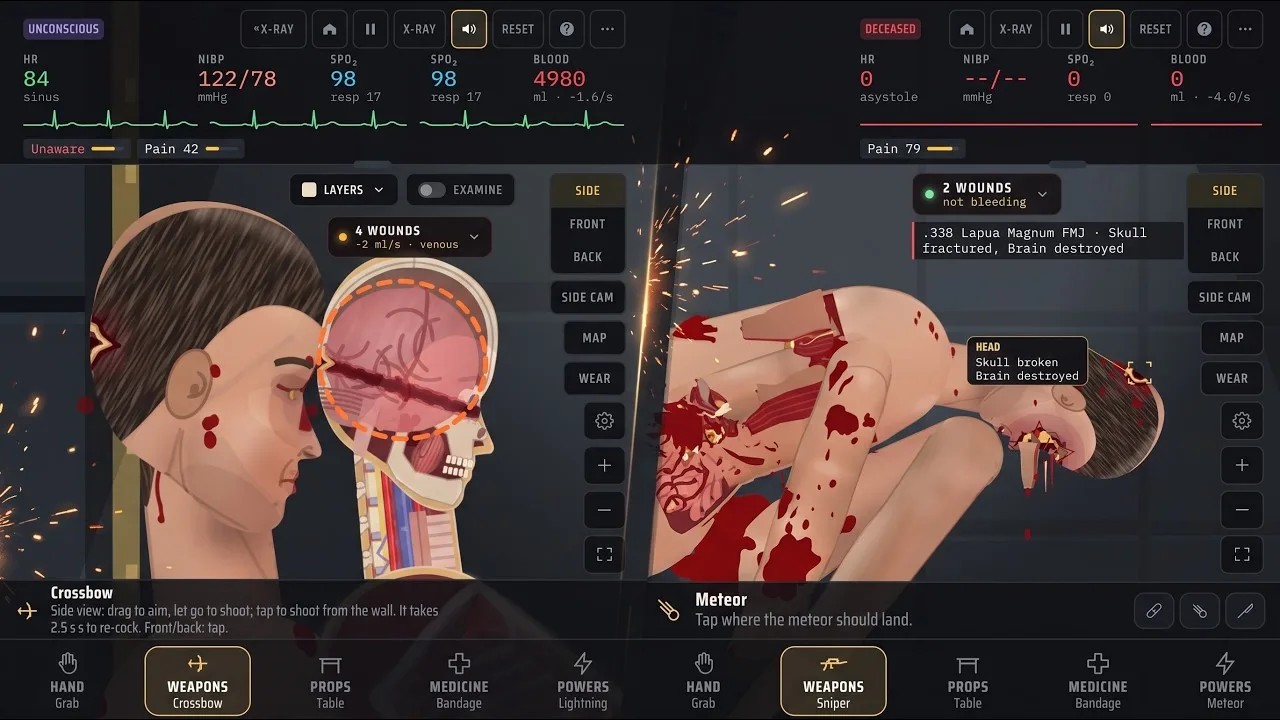
Trauma lab xray starts with a single sandbox shortcut: press X to activate X-ray. Pair it with Z for Examine to inspect the subject while using X-ray. Learning the Trauma lab xray controls helps you connect injuries with the game’s examination, bullet-path, and organ-chart tools.
In v1.19, these are the default sandbox bindings. Keys are remappable, and Story uses different controls, so keep the mode you’re playing in mind before following a shortcut.
Start with this sequence:
- Press Space to pause the simulation.
- Press X for X-ray.
- Use Z for Examine with X-ray.
- Press T when you want to inspect bullet paths.
- Press C to open the organ chart.
- Resume with Space when you’re ready to continue.
Pausing gives you room to work through the controls without advancing the simulation. Use that breathing room to examine the injury before choosing another tool.
The Grab tool also has an examination interaction: tap a body part to examine it. Dragging with Grab moves body parts or objects, so keep the distinction between a tap and a drag in mind.
Treat X-ray as part of an inspection routine. Examine, bullet paths, camera views, and the organ chart each have separate controls. Learn them together so you can move between the information you need without repeatedly opening the tool menu.
Learn the X-ray and Camera Controls
The Trauma lab xray workflow becomes easier to manage once you separate inspection shortcuts from camera shortcuts. X-ray and Examine handle inspection; view switching, zoom, and camera movement handle how you frame the subject.
| Inspection action | Default sandbox key | Function |
|---|---|---|
| X-ray | X | Activates X-ray |
| Examine with X-ray | Z | Uses Examine alongside X-ray |
| Bullet paths | T | Controls the bullet-path display |
| Organ chart | C | Opens the organ chart |
| Pause or play | Space | Stops or resumes simulation time |
| Slower | Left Arrow | Decreases simulation speed |
| Faster | Right Arrow | Increases simulation speed |
Keep X, Z, T, and C in mind as a group. They cover different inspection functions, and none replaces the others. For example, checking a projectile’s path is a separate action from opening the organ chart.
Camera controls deserve the same attention:
| Camera action | Default control | Function |
|---|---|---|
| Next view | V | Cycles Side → Front → Back |
| Zoom in | Equal key | Moves the view closer |
| Zoom out | Minus key | Pulls the view back |
| Fit to screen | 0 | Fits the subject to the screen |
| Move camera | Move tool | Drag to pan; pinch or scroll to zoom |
Use 0 when a close inspection leaves you needing the full-body view again. Then cycle through Side, Front, and Back with V to compare the injury from another direction.
For camera adjustments, select Move. Its drag interaction pans the camera, while pinch or scroll changes zoom. Grab also uses dragging, but moves physical objects and body parts instead. Choose the tool deliberately before dragging across the subject.
The broader sandbox shortcuts help you reach tools quickly:
- 1: Hand tools
- 2: Weapons
- 3: Props
- 4: Medicine
- 5: Powers
- Q / E: Previous or next tool in the current tab
- Tab: Tool menu
- O: Options
These bindings belong to sandbox. In v1.19 Story, Q is the cover control near a steel crate. Don’t carry that sandbox shortcut into Story expecting it to cycle tools.
Read Injuries With Examine, Bullet Paths, and the Organ Chart
Trauma lab xray is more useful when you follow a consistent inspection order. Pause, examine the affected area, check a bullet path when relevant, and consult the organ chart before selecting a treatment.
Keep the type of damage in mind. The game distinguishes between surface wounds, lodged bullets, broken bones, and internal bleeding. Its treatment tools have different jobs, so closing a visible wound doesn’t automatically resolve everything underneath it.
For example, Suture closes a wound and ties off torn vessels at that wound, but deep internal bleeding continues. Surgery addresses bleeding vessels and organs in the selected body part and removes bullets there before closing.
That distinction matters when you’re deciding what to do after an inspection. Don’t keep repeating an external treatment simply because the wound is easy to see. Match your next action to the injury you’re investigating.
Use these habits while learning the anatomy tools:
- Inspect before intervening. Pause and examine the area before applying another treatment.
- Check projectile paths after a shot. Use T to inspect the path alongside your examination.
- Compare views. Cycle through Side, Front, and Back before settling on your next action.
- Return to the organ chart. Keep organ information in the same inspection routine as X-ray.
- Recheck after treatment. Examine the area again before continuing the simulation.
Change one thing at a time while learning. Apply a treatment, inspect again, and then decide what to do next. This keeps your attention on the tool you just used instead of mixing several interventions into one confusing sequence.
The game also provides a heart monitor size control on M. Keep that shortcut separate from the organ chart on C: they are distinct interface functions.
Match the Injury to the Right In-Game Tool
Once you’ve used Trauma lab xray to guide your inspection, switch to Medicine with 4. The medical tools handle different injury types, from external wounds to fractures and organ damage.
Every treatment described here belongs to the game’s simulation.
| Tool | In-game function | Detail to remember |
|---|---|---|
| Bandage | Dresses a wound or wraps an area | Tap to dress; drag to wrap |
| Suture | Closes a wound and ties off torn vessels there | Deep internal bleeding continues |
| Gauze pack | Packs deep wounds, craters, and stumps | Handles areas that cannot be stitched |
| Forceps | Removes a lodged bullet | Tap the gray bullet |
| Surgery | Repairs internal bleeding and removes bullets in a body part | Sedate the subject first |
| Bone plate | Sets and fixes broken bones | Sedate the subject first |
| Graft | Rebuilds missing tissue and covers large wounds or stumps | Sedate the subject first |
| Transplant | Replaces a damaged organ or reattaches a limb | Its action depends on where you tap |
Lodged Bullets and Internal Bleeding
Forceps targets a gray bullet directly. Bullets left inside cause pain and gradual bleeding in the simulation, so include them in your post-shot examination.
Surgery has a broader role. Tapping a body part operates on that area, repairing bleeding vessels and organs while also removing bullets there. Sedate the subject before using it.
Choose between those tools based on the problem you’re addressing. Use Forceps for a lodged bullet; use Surgery when addressing internal bleeding in the body part. Don’t expect a surface stitch to perform the same job.
Fractures and Missing Tissue
The Bone plate tool works on broken arms, legs, the hip, spine, skull, and chest. It sets the bone and fixes it with a plate and screws. The subject can use the limb and stand again once pain allows.
Keep that pain condition in mind when checking the result. Bone repair and immediate movement are separate parts of the tool’s behavior.
Graft handles large wounds, craters, and stumps. It cleans the area, ties off vessels, and covers the damage with a skin graft. Sedation comes first for both Graft and Bone plate.
Transplant serves several purposes. Tapping a body part replaces its most damaged organ; tapping a stump or detached limb reattaches the limb. After radiation exposure, tapping the body performs a bone marrow transplant.
Regeneration Tools Have Different Roles
Super serum provides regeneration. Ultra serum brings back a dead subject and regrows lost limbs.
Keep those names straight when comparing your options. If you’re learning individual repair tools, inspect and repair a specific injury before using a broader regeneration effect.
Keep the View Clear and the Sandbox Responsive
A useful Trauma lab xray session depends on being able to navigate the subject and read the interface comfortably. Start with camera framing, then adjust the display elements that compete for your attention.
| Setting or control | Location or shortcut | Function |
|---|---|---|
| Gore level | Options menu | Lower it to reduce lag |
| Hit label | Options → Interface → On screen → Hit label | Shows or hides the label attached to the newest wound |
| Heart monitor size | M | Adjusts the monitor’s size |
| Fit to screen | 0 | Restores full-subject framing |
If the game lags, lower the gore level in Options. This is the direct performance adjustment to try before continuing a detailed examination.
Version 1.17 introduced phone performance improvements by changing how body lighting, shadows, and skin textures are prepared. Version 1.19 follows those changes. Keep the gore setting in mind even with those improvements, especially when you want smoother camera handling.
The hit label is enabled by default. It points to the newest wound and identifies where a bullet entered and what it hit. Turn it off through the Interface settings when you want that label out of the way; the game remembers the choice.
Use the Move tool for deliberate camera adjustments, then return to inspection. If you’ve zoomed in closely, press 0 before choosing another view so you can frame the subject again.
Trauma Lab is available for HTML5, Windows, and Android. Visit the official Trauma Lab game page to play or find downloads.
Before resuming a sandbox experiment, check your selected tool, current view, and simulation speed. Those controls shape what happens next, whether you’re examining anatomy or returning to treatment.
FAQ
What Is the Trauma lab xray Key?
The default sandbox X-ray key in v1.19 is X. Use Z for Examine with X-ray, T for bullet paths, and C for the organ chart. The bindings are remappable.
How Do You Examine a Body Part?
Tap a body part with Grab, or use Z for Examine with X-ray. With Grab selected, dragging moves a body part or object, so use a tap when you want to examine.
Does Stitching Stop Internal Bleeding?
Suture closes the selected wound and ties off torn vessels there, but deep internal bleeding continues. Surgery repairs bleeding vessels and organs in the selected body part. Sedate the subject before operating in the game.
How Do You Reduce Lag While Using X-ray?
Lower the gore level in Options. For camera framing, use the Move tool to pan or zoom and press 0 to fit the subject to the screen. These camera controls help you navigate while you continue inspecting.
Continue with
 Trauma Lab Anatomy Guide: Organs, X-Ray, and HealingUse this Trauma lab anatomy guide to learn X-ray controls, examine organs, spot internal bleeding, and choose tools for wounds, fractures, and recovery.
More in Anatomy
Trauma Lab Bones: X-Ray Controls and Fracture Repair
Learn how Trauma lab bones work in v1.19, use X-ray controls, repair fractures with Bone plate, and understand limb reattachment, pain, and serum effects.
Trauma Lab Organs: How to Inspect, Repair, and Replace
Explore Trauma lab organs in v1.19 with X-ray controls, internal bleeding repairs, donor transplants, and serum differences. Learn which tools to use next.
Trauma Lab Skin Guide: Burns, Wounds, and Healing Tips
Learn how Trauma lab skin damage works in v1.19, compare bandages, Burn gel, and Graft, and use sandbox controls to inspect wounds and treat burns in-game.
Trauma Lab Tissue Damage: Wounds and Repair Explained
Learn how Trauma lab tissue damage works in v1.19, inspect wounds, distinguish internal bleeding, and match injuries with the right in-game repair tools.
Join the community
Official channels for news, updates and player help: